
Updated October 4, 2026
TikTok Banner Guide – Official and Pinned Posts Methods
How to add a TikTok profile banner the official way — plus pinned posts as the reliable alternative. Independent tips guide.
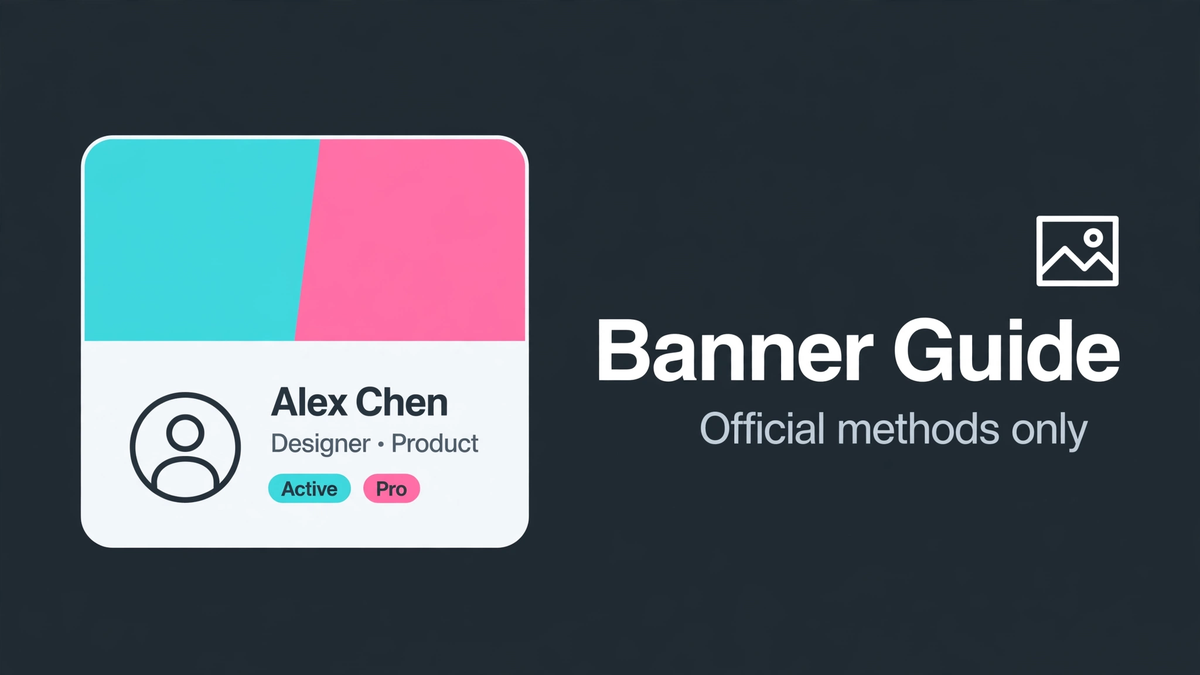
Your TikTok profile is your storefront — and a banner (profile background) makes it look intentional. Here is how to set one up without touching shady mods.
The official banner option
When available on your account: Profile → Edit profile → change background or banner. Pick an image or GIF from your gallery, crop it to fit, and save. Use a high-resolution image — blurry banners look worse than none. Availability varies by region and app version, so if you do not see the option, update the app from the official store first.
What makes a good banner
Keep text minimal (it crops unpredictably across devices), use bold simple visuals, and match your content niche — a cooking creator’s banner should signal cooking in one glance. Your profile photo and username carry the identity; the banner carries the vibe.
The reliable alternative: pinned posts
No banner option? Pin up to three posts to the top of your profile. Pinned videos act as your showcase — many top creators rely on pins alone. Choose your best-performing or most representative videos.
What not to do
Modified TikTok APKs that promise “banner unlock” or extra customization are a trap — the risks include bans and malware. If a feature is not in your official app, wait for the rollout.
More profile control: region and customization options.
Independent tips guide — not affiliated with TikTok.